How to Download All Your BeReal Photos
Quick Answer
RealRetrieve is a web tool that converts your BeReal data export into downloadable photo files. To export all your BeReal photos: request your data from BeReal via GDPR (takes ~48 hours to receive), then upload the ZIP file to RealRetrieve, which converts it into organized JPG photos you can download in one click. The one-time fee is $7.99.
Downloading your BeReals one at a time takes forever. There's no "download all" option in the app.
But there's a workaround. You can request your data through GDPR, then use a tool called RealRetrieve to turn that data into actual photos.
This guide walks you through the entire process: requesting your data, downloading it, and converting it into actual photo files you can keep forever.
Not sure you need to? Here's why you should back up your BeReal memories now — or go deeper into what exactly comes in the ZIP file.
The Quick Version
- Request your data through BeReal's Help menu using a GDPR template
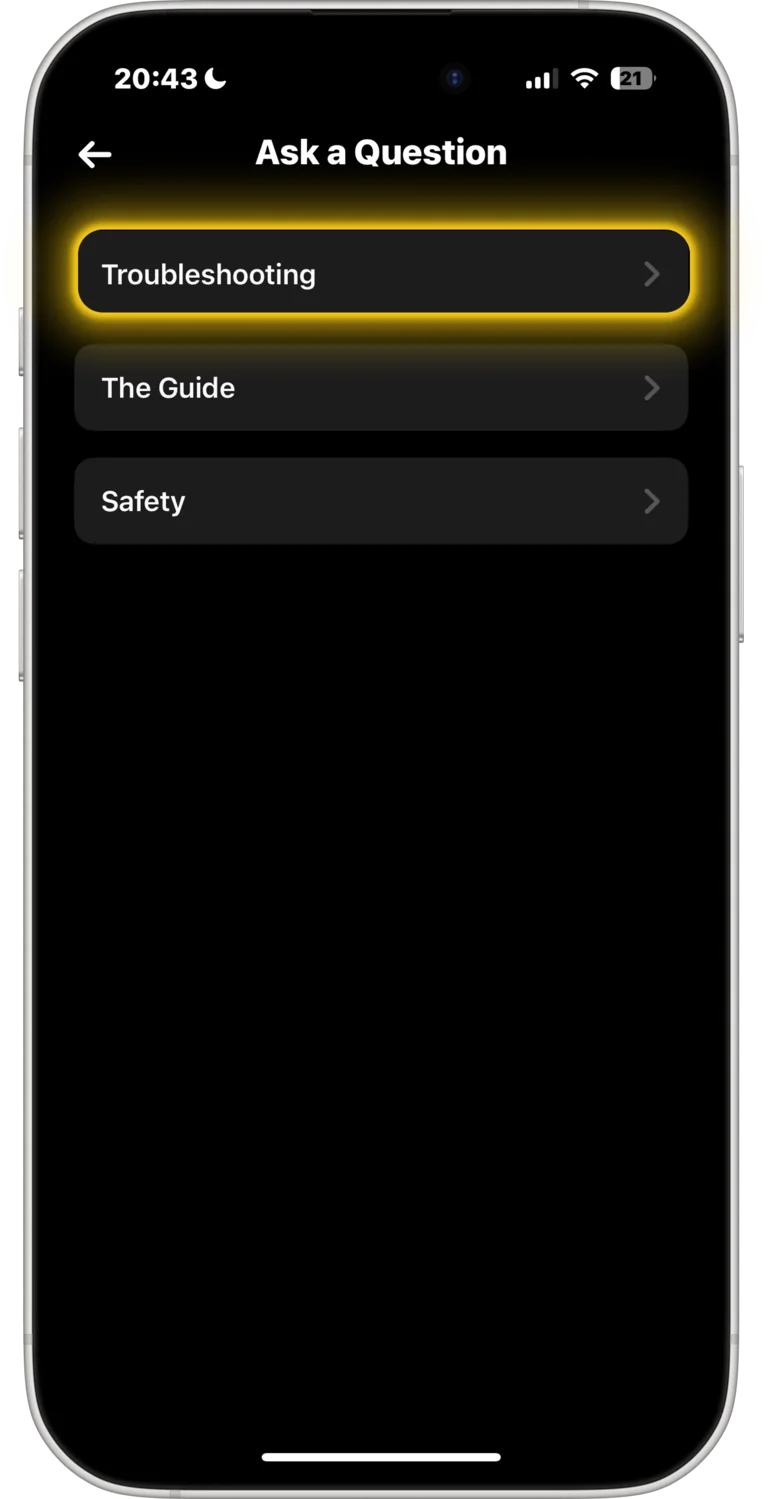
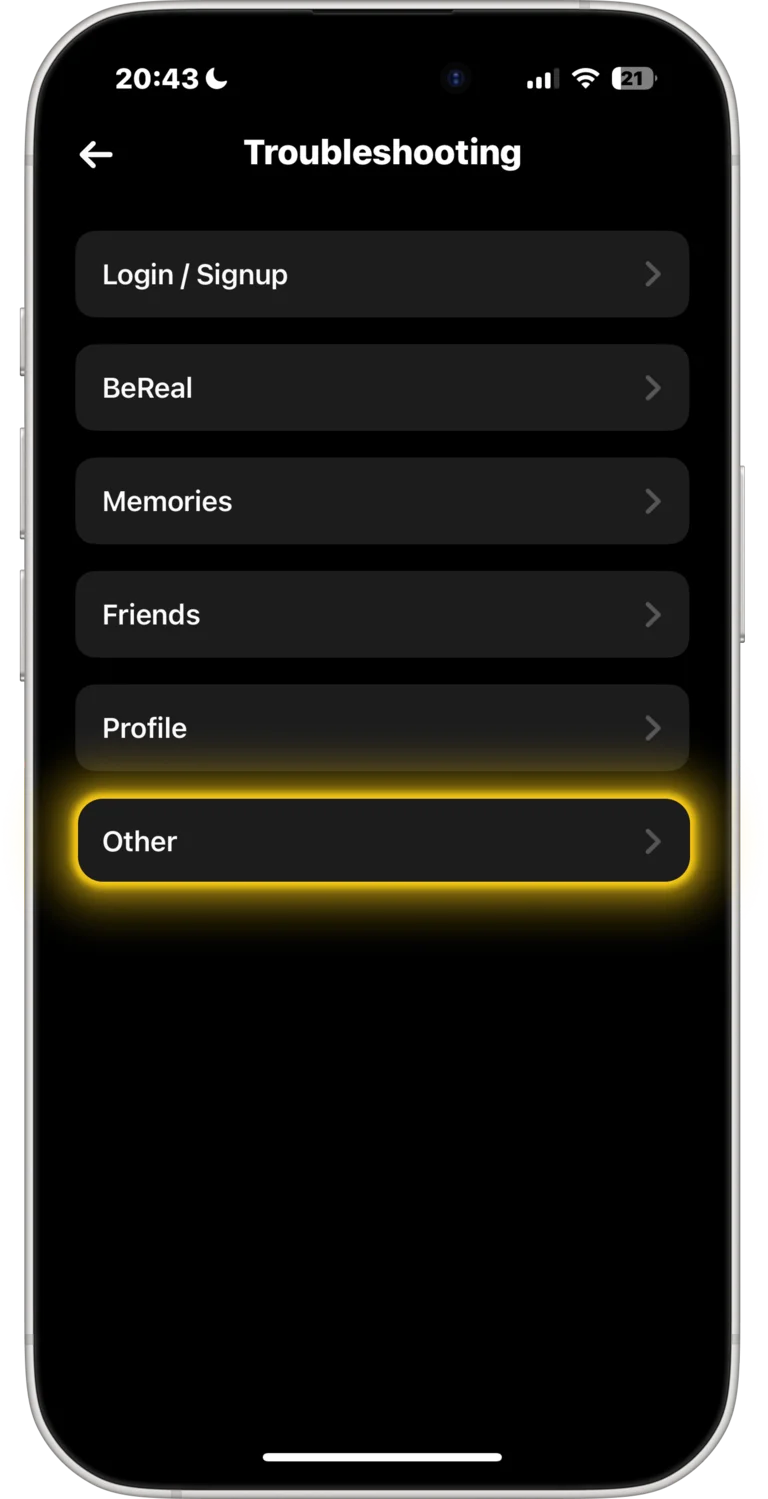
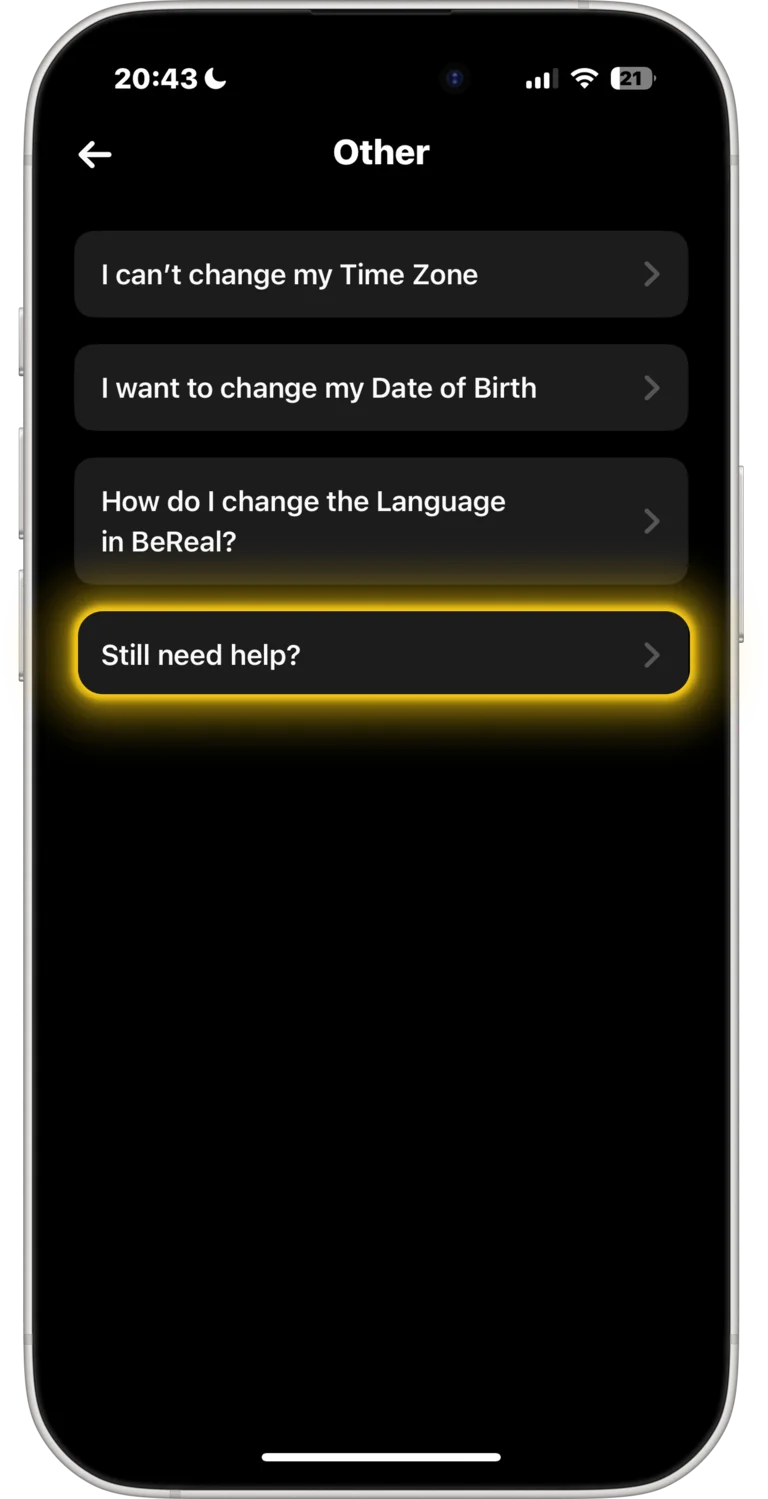
(Profile → Settings → Help → Contact us → Ask a Question → Troubleshooting → Other → Still need help? → Select Topic → "I'd like to request a copy of my data" → Send your request) - Wait 2–48 hours for BeReal to send you a ZIP file
- Upload the ZIP to RealRetrieve to convert it into photos
- Preview and download everything
Total hands-on time: About 4 minutes, plus waiting for BeReal to respond.
Here's the full process.
Requesting Your Data (Steps 1–7)
Step 1: Open the app
Open the BeReal app on your phone.
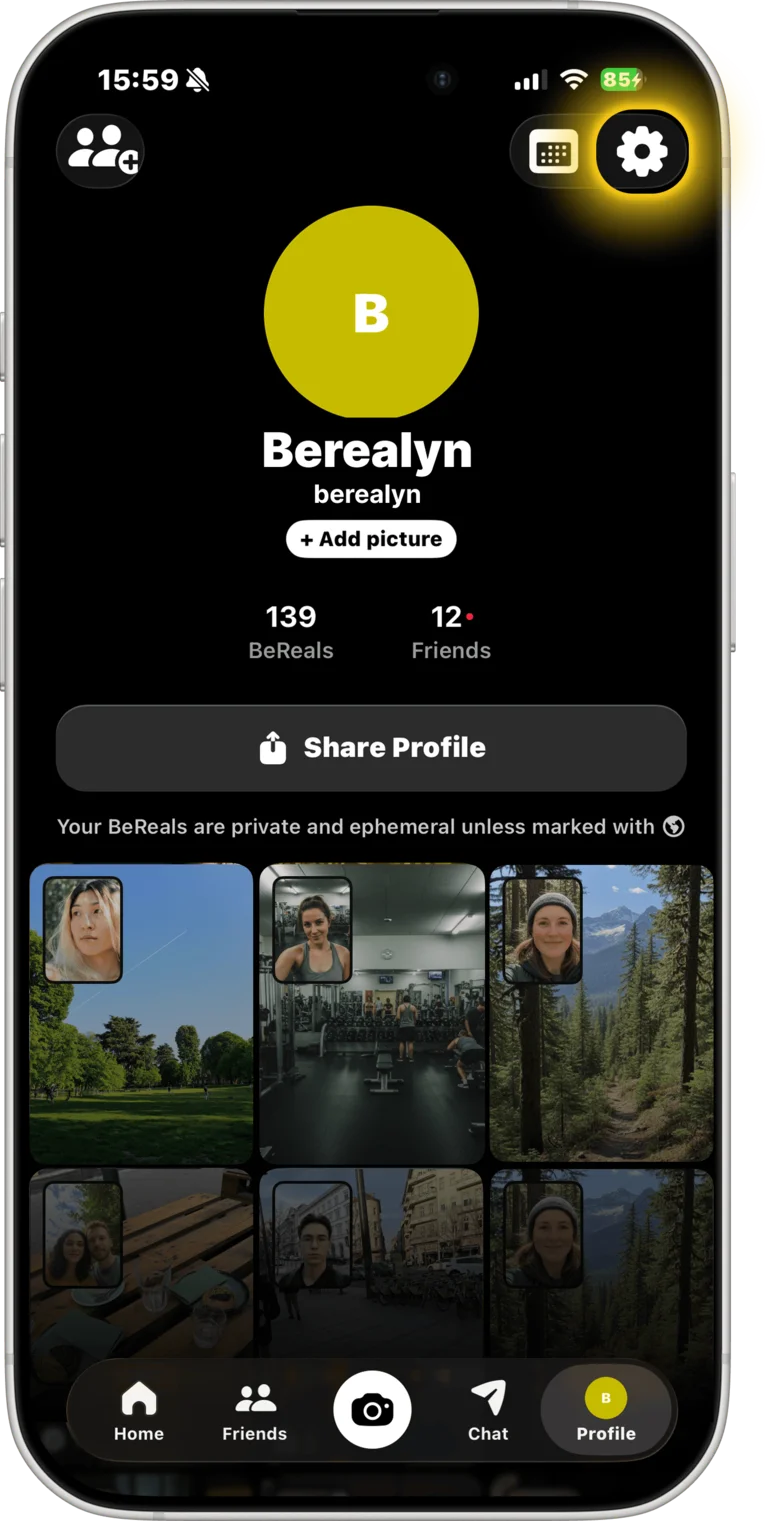
Step 2: Open your profile
Tap your profile picture in the bottom right corner of the home screen.

Step 3: Access Settings
Tap the gear icon in the top right.
Step 4: Get to the contact form
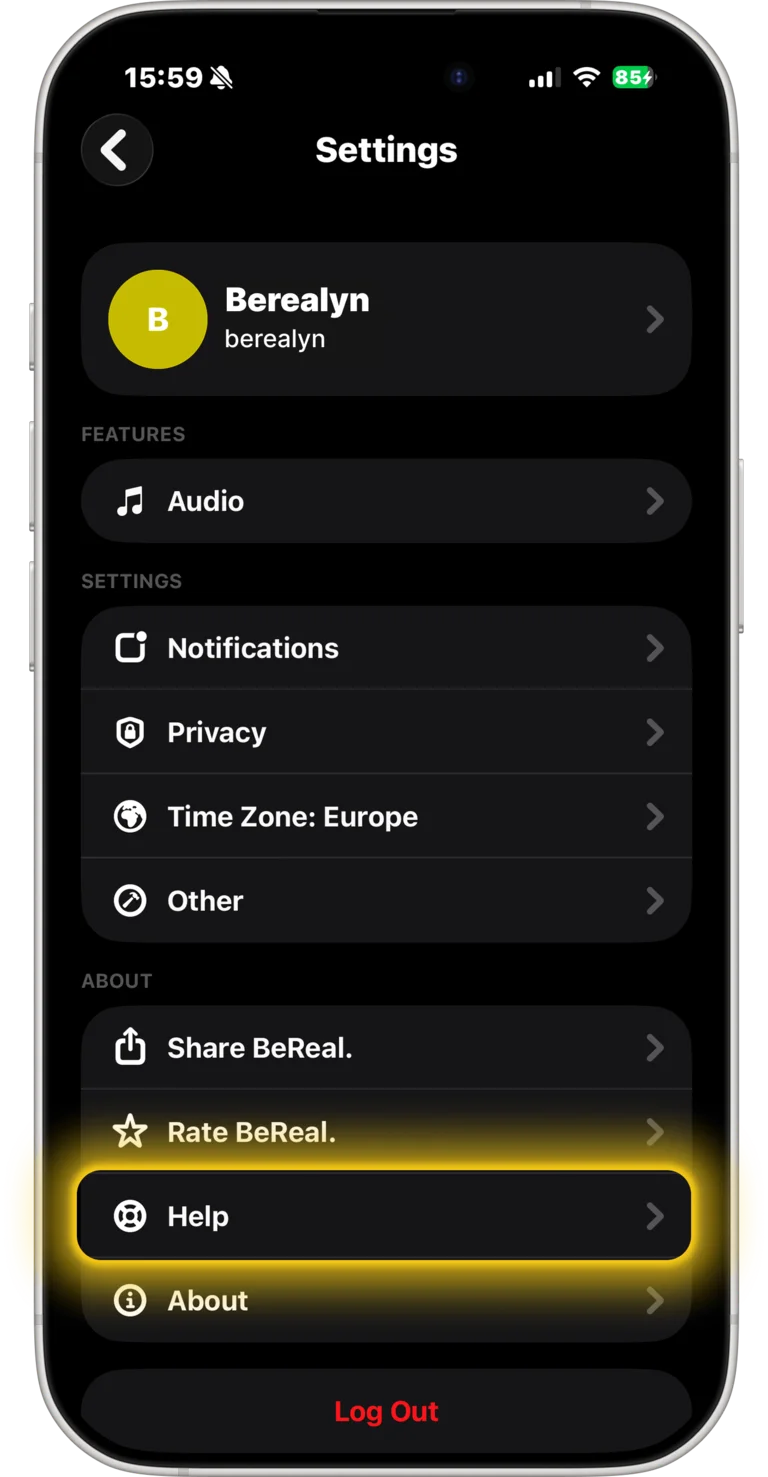
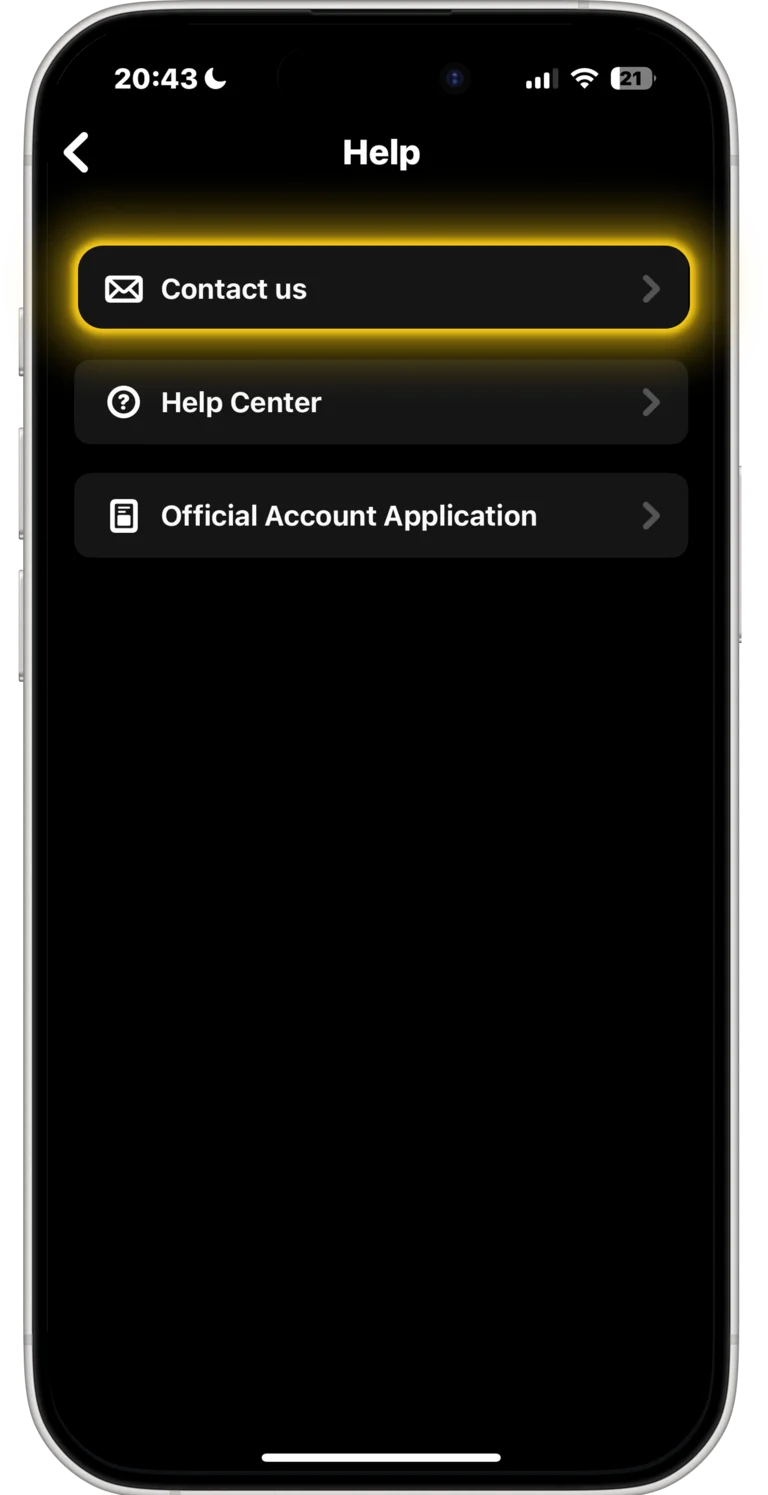
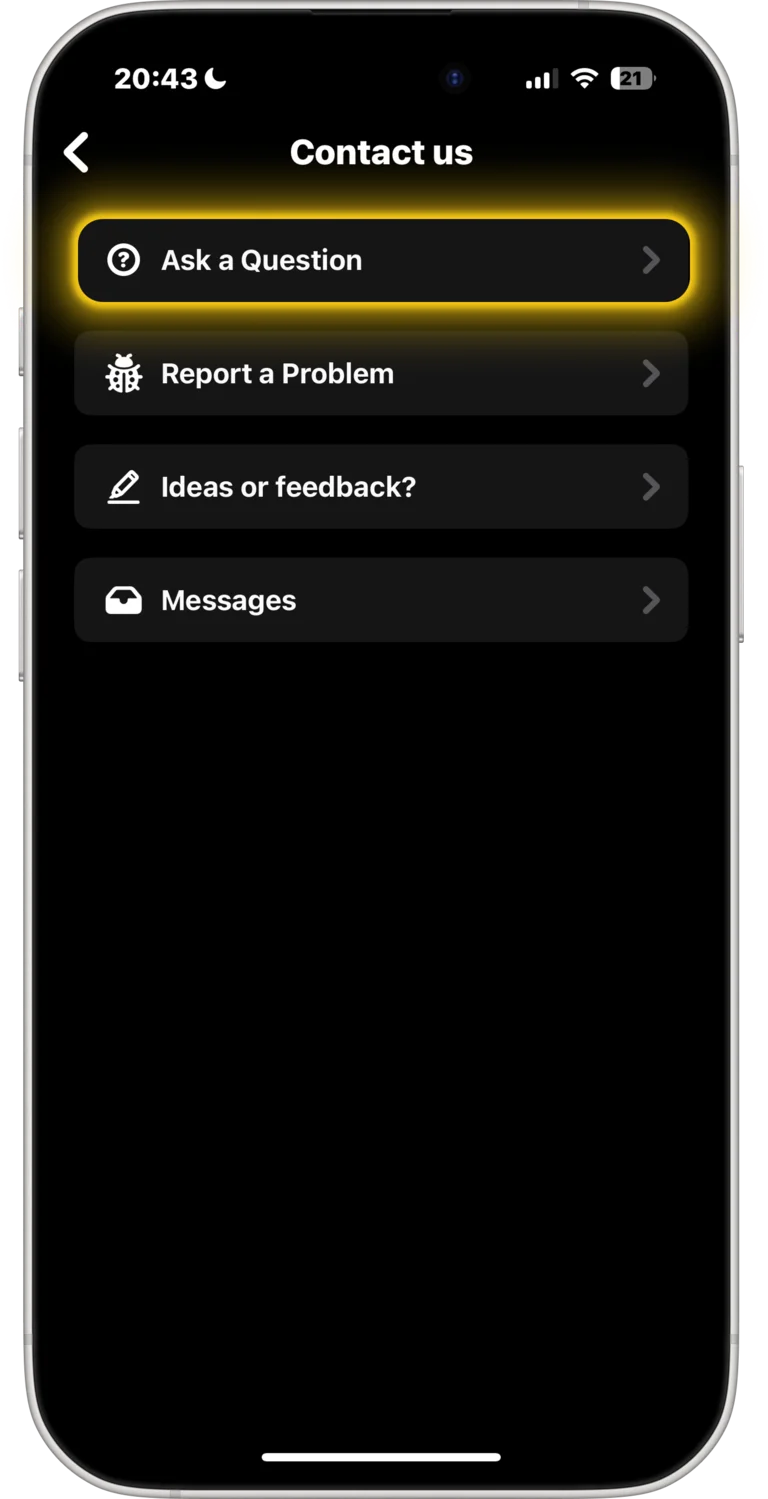
Navigate through these menus:
4.1 Find Help
Scroll down to the About section. Tap Help.
4.2 Contact us
4.3 Ask a Question
4.4 Troubleshooting
4.5 Other
4.6 Still need help?
Step 5: Select the right topic
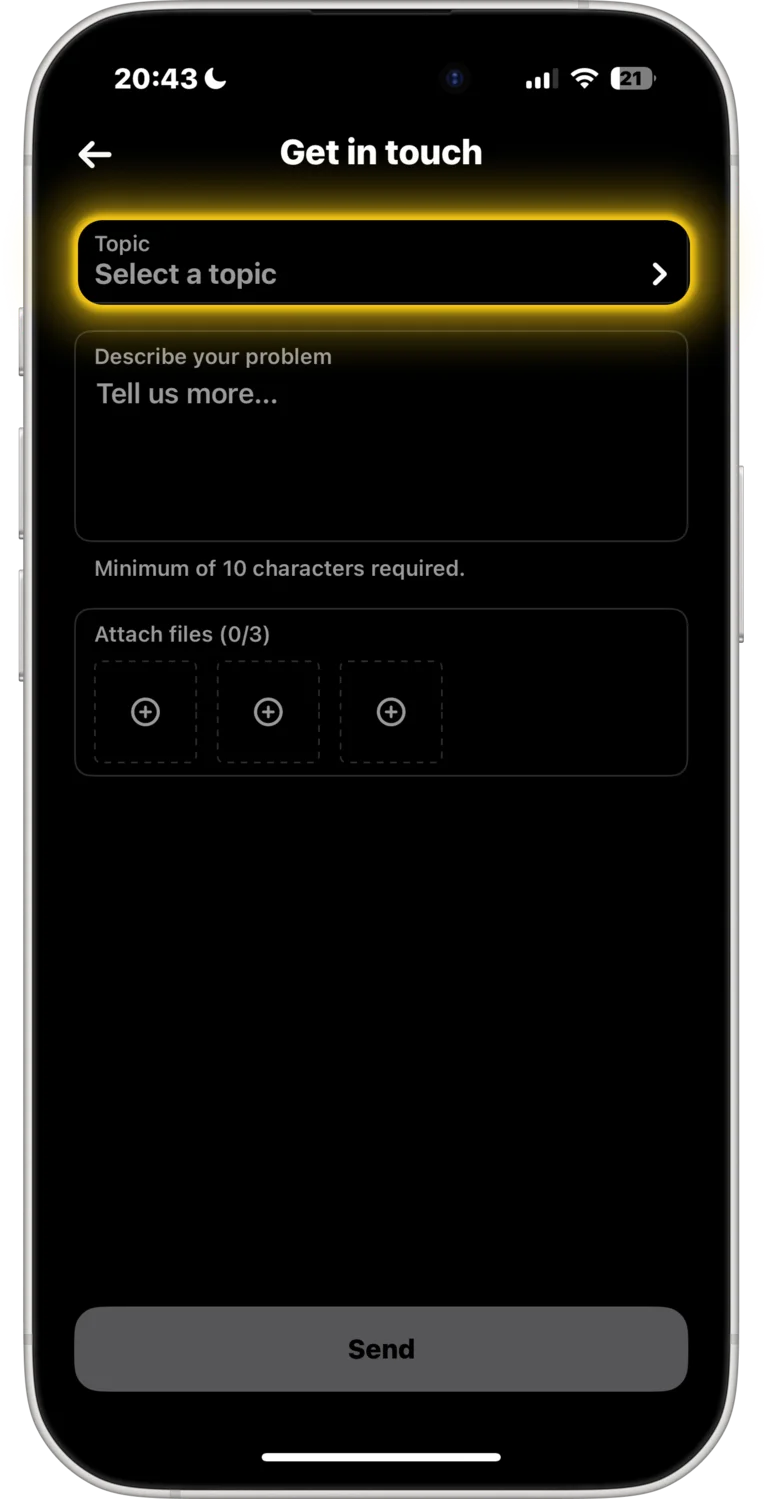
Tap Select Topic, then choose "I'd like to request a copy of my data"
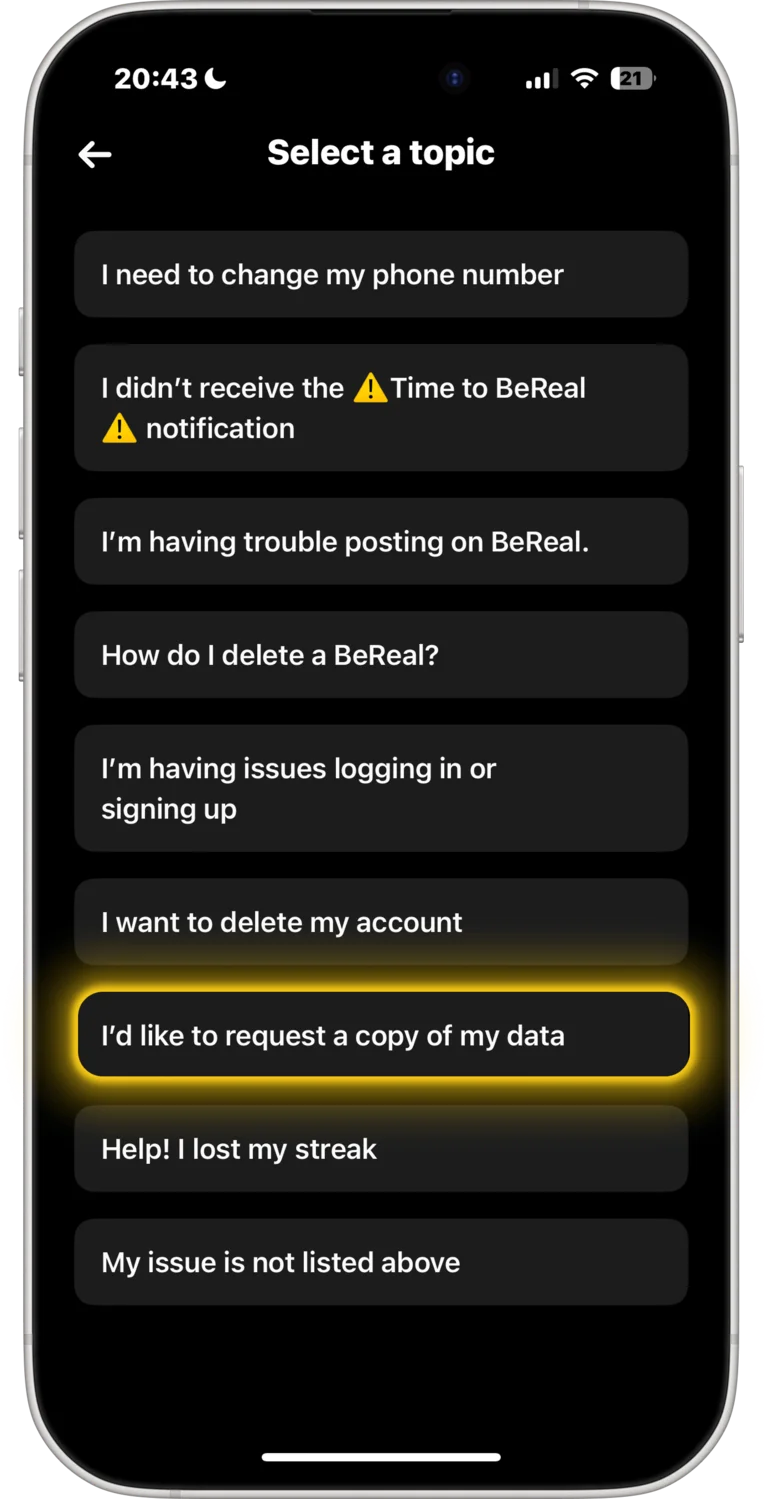
Step 6: Submit your request
Copy and paste this GDPR request:
Send it.
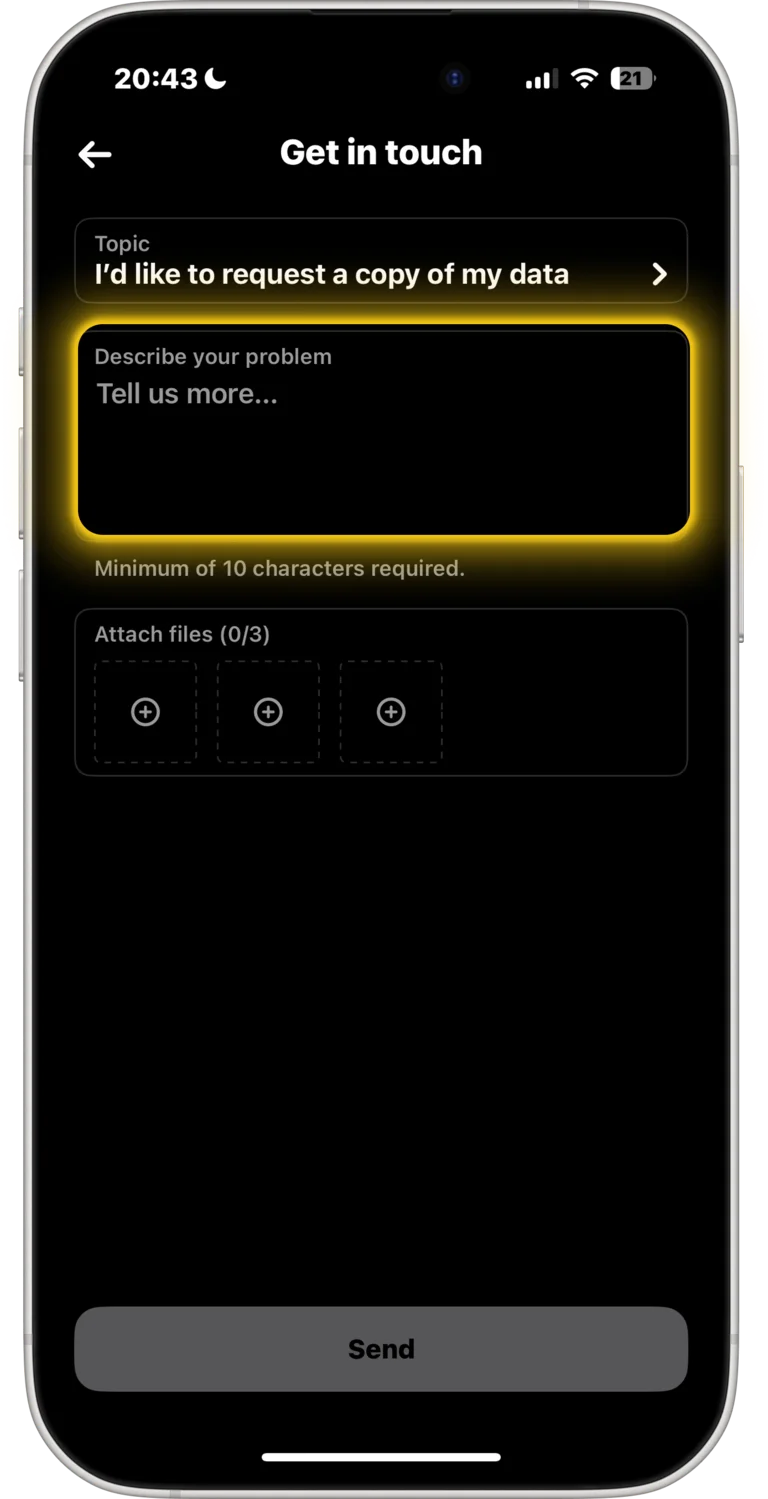
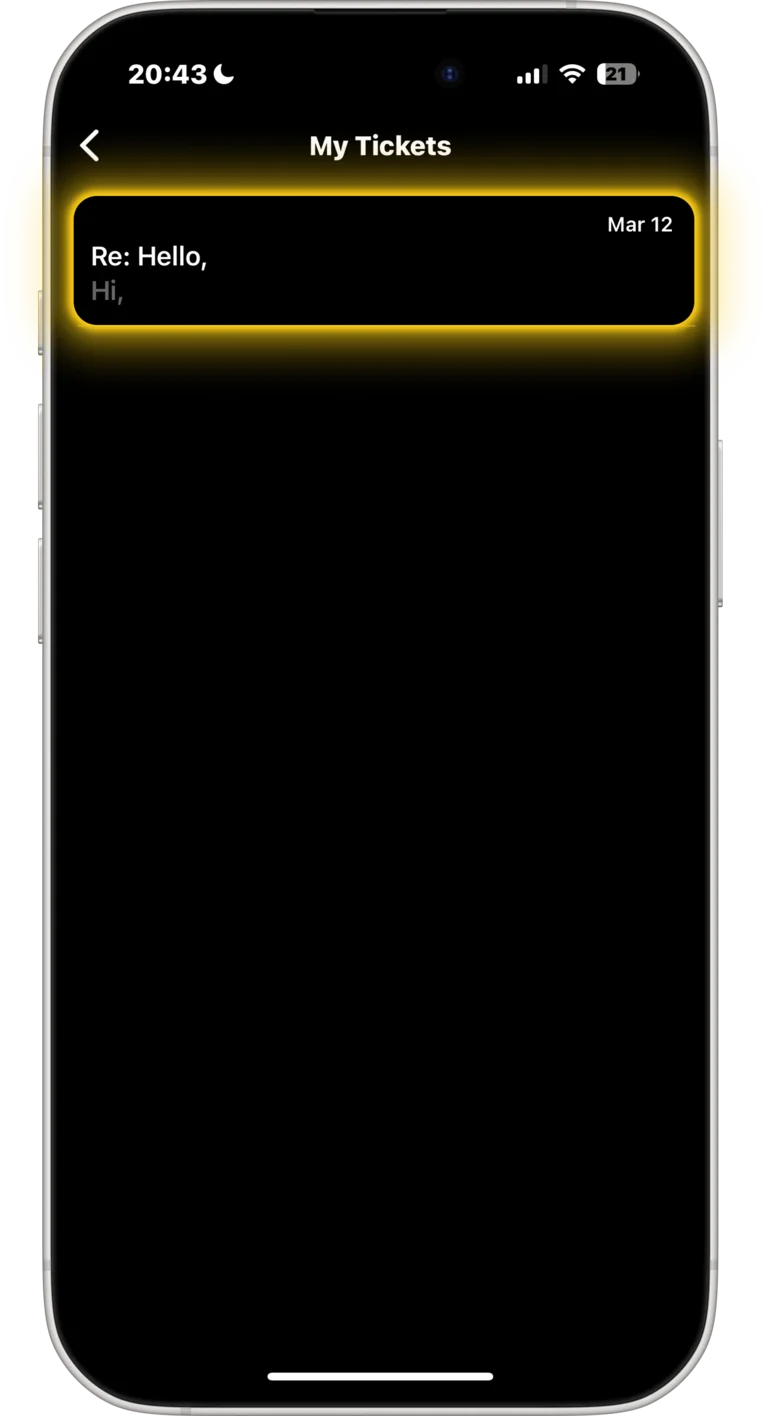
Step 7: Download your data
BeReal processes requests in 2–48 hours. When you get the notification, download the ZIP file from the link they send you.
Converting to Photos (Steps 8–10)
BeReal sends you raw data, not image files. Here's how to turn it into usable photos. (~2 min + 30 min processing)
Step 8: Upload to RealRetrieve
BeReal sends you two files — BeReal Profile Activity&Data.zip and BeReal Data Export.json.gz. You only need the Activity&Data.zip. Head to RealRetrieve and upload that file.
Step 9: Preview everything
RealRetrieve displays all your photos with their original dates and locations. You can see everything before spending a cent.
Step 10: Download
Pay the flat $7.99 fee (no subscription) and download all your photos in one click.
Output Details
Format: JPG files in BeReal's signature picture-in-picture style.
You get both orientations:
- Main photo from back camera + front camera in corner
- Main photo from front camera + back camera in corner
Speed: Roughly 20 minutes of processing per 1,000 photos.
iPhone users: Import the entire download into Apple Photos using a Shortcut. Your photos land in your camera roll with correct timestamps—no manual organizing needed.
Why Use RealRetrieve?
- One-time payment: $7.99 flat fee, no subscription
- Preview first: See all your photos before you pay
- Secure: Your data is encrypted and stored on Google Cloud Platform
- Fast: Automated conversion, no manual work
- Complete: Get every BeReal you've ever posted
Have questions? Check out our FAQ or read our Terms of Service and Cookie Policy.
Looking for more guides? Saving specifically to iPhone? See the step-by-step guide, or see how this manual vs. RealRetrieve, compared process actually stacks up.
← Back to Home